Nexa VMS Support
To get help, open a support request. The Nexa VMS support team replies by e-mail.
Open a support request
Request received
Reference:
Other channels
- E-mail: support@nexavms.io
- Licenses, invoices and installations can also be checked in the customer area.
Remote access
Nexa Support is the program the Nexa VMS support team uses to assist customers remotely. Install it only when a Nexa VMS technician asks you to.
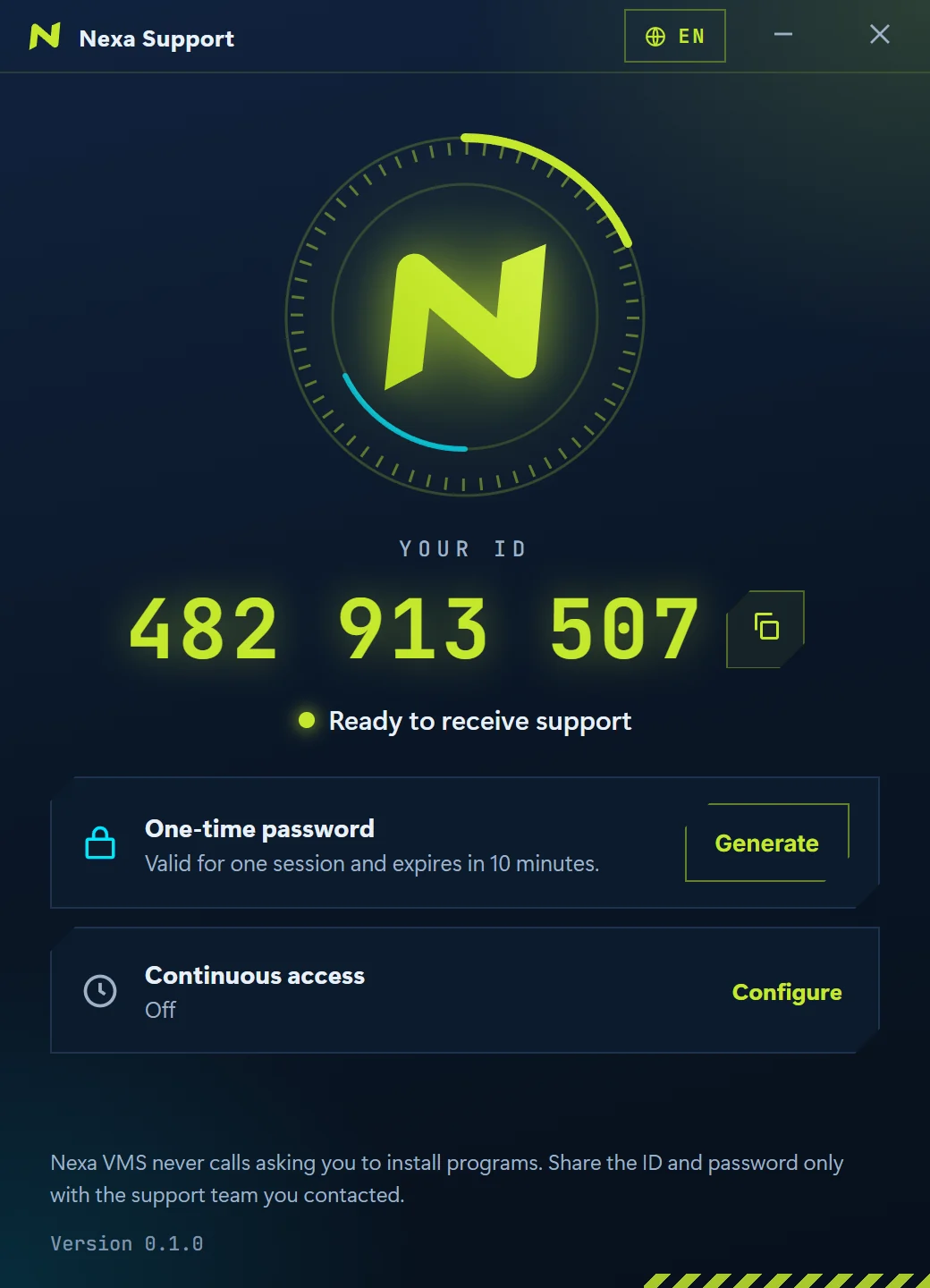
How a support session works
- Install the program and create the access password. You type it twice to avoid typing mistakes.
- Share the 9-digit ID and the password only with the technician who is helping you. If you prefer, generate a one-time password, valid for 10 minutes.
- When the access request appears, check that the verification code matches the one on the technician's screen and click Allow. To end the session, use the End access button in the bar at the top of the screen.
Remote access security
Nexa Support was developed by Nexa VMS to serve environments that require a high level of security, such as monitoring centers, industrial sites, cities, government and defense.
- Only the Nexa VMS team can connect. The technician's identity is verified by certificate and shown in the access request.
- Every session requires your permission, and you can end it at any time.
- The connection is end-to-end encrypted, and the password never leaves your computer.
- Every session is logged on your computer, in Windows Event Viewer and in the Nexa VMS portal.
- Files and clipboard only go through with your permission.
Nexa VMS never calls asking you to install anything
- Only install Nexa Support when you asked the Nexa VMS team for help yourself.
- Do not give the ID and password to anyone who called or messaged you without your request, even if they say they are from Nexa VMS.
- The technician's name appears verified in the access request and in the session bar. If anything looks wrong, end access and write to support@nexavms.io.